# Jobs

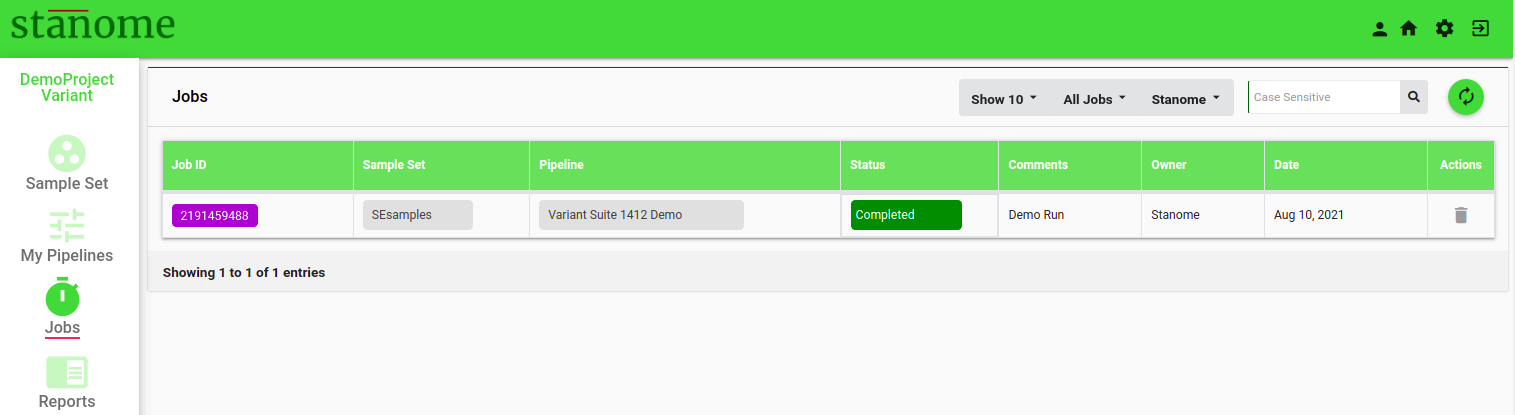
<span style="font-size: 12pt; font-family: Montserrat, sans-serif; color: #232a3c; background-color: transparent; font-weight: 400; font-style: normal; font-variant: normal; white-space: pre-wrap;">Completed or unfinished pipeline runs are listed in the jobs table on the </span><span style="font-size: 12pt; font-family: Montserrat, sans-serif; color: #232a3c; background-color: transparent; font-weight: bold; font-style: normal; font-variant: normal; white-space: pre-wrap;">Jobs</span><span style="font-size: 12pt; font-family: Montserrat, sans-serif; color: #232a3c; background-color: transparent; font-weight: 400; font-style: normal; font-variant: normal; white-space: pre-wrap;"> window (Fig. 1).</span>

![Fig. 1. The Jobs list window.](https://docs.stanome.com/uploads/images/gallery/2022-01/embedded-image-epekpyia.png)

- <span style="font-size: 12pt; font-family: Montserrat, sans-serif; background-color: transparent; font-weight: 400; font-style: normal; font-variant: normal; white-space: pre-wrap;">Click on the jobID to access job details.</span>
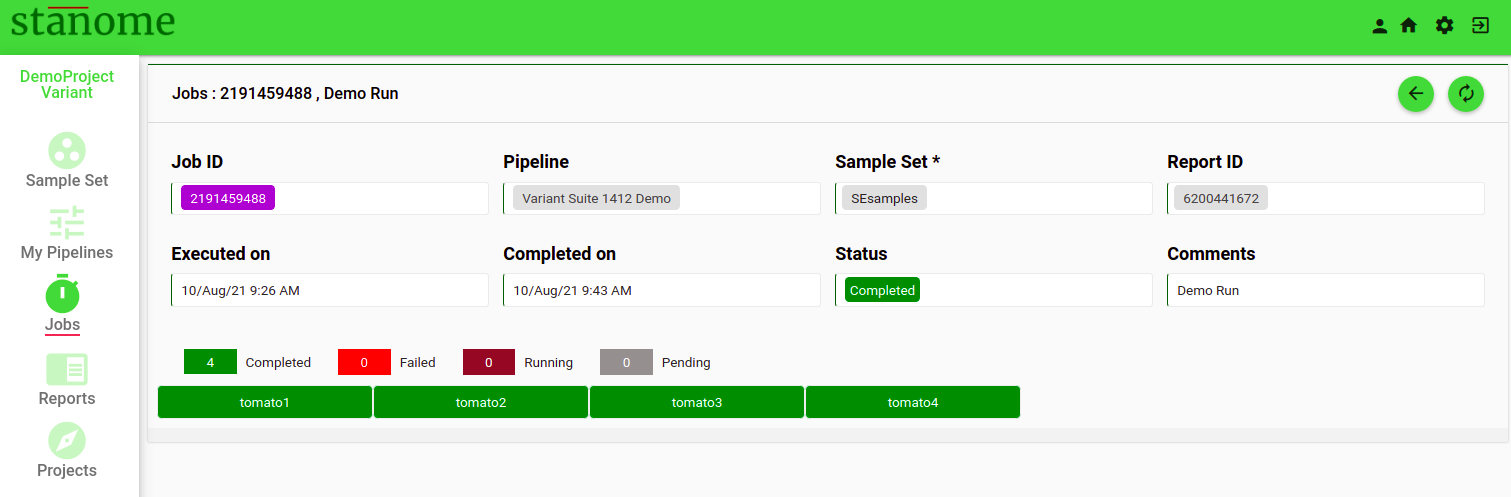
- <span style="font-size: 12pt; font-family: Montserrat, sans-serif; background-color: transparent; font-weight: 400; font-style: normal; font-variant: normal; white-space: pre-wrap;">Overview tab lists details of Pipeline run i.e. Job ID, pipeline name and sample set, start and end time of execution, and status.</span>
- <span style="font-size: 12pt; font-family: Montserrat, sans-serif; background-color: transparent; font-weight: 400; font-style: normal; font-variant: normal; white-space: pre-wrap;">Sample Deep-dive (Fig. 2) lists all the sample names.</span>
- <span style="font-size: 12pt; font-family: Montserrat, sans-serif; background-color: transparent; font-weight: 400; font-style: normal; font-variant: normal; white-space: pre-wrap;">Click one sample to check the status or log files for that sample.</span>
- <span style="font-size: 12pt; font-family: Montserrat, sans-serif; background-color: transparent; font-weight: 400; font-style: normal; font-variant: normal; white-space: pre-wrap;">Click the </span><span style="font-size: 12pt; font-family: Montserrat, sans-serif; background-color: transparent; font-weight: 400; font-style: normal; font-variant: normal; white-space: pre-wrap;"><span style="border-width: initial; border-style: none; display: inline-block; overflow: hidden; width: 21px; height: 23px;">![](https://lh6.googleusercontent.com/__iNENFikTxwcWC7rvc0XJK3E-YalGYNSaFVpCT3_TBPhIQcyWKVa2lOpj5aL7LCoHLbTq3z4VRSqQkiqdZYdoW8PBAUmLv4wPdrFc3NSOmBk2Dkwingt86zeP2j91VceCOS92St)</span></span><span style="font-size: 12pt; font-family: Montserrat, sans-serif; background-color: transparent; font-weight: 400; font-style: normal; font-variant: normal; white-space: pre-wrap;"> icon on the upper right corner of the jobs details window, to delete the job.</span>
- <span style="font-size: 12pt; font-family: Montserrat, sans-serif; background-color: transparent; font-weight: 400; font-style: normal; font-variant: normal; white-space: pre-wrap;">Stanome generates a consolidated report for each job. The report can be accessed directly by clicking the ReportID on the job details page or through the </span><span style="font-size: 12pt; font-family: Montserrat, sans-serif; background-color: transparent; font-weight: bold; font-style: normal; font-variant: normal; white-space: pre-wrap;">Reports</span><span style="font-size: 12pt; font-family: Montserrat, sans-serif; background-color: transparent; font-weight: 400; font-style: normal; font-variant: normal; white-space: pre-wrap;"> section from the left-hand menu.</span>

![Fig. 2. Sample Deep-dive.](https://docs.stanome.com/uploads/images/gallery/2022-01/embedded-image-xttsrsqx.png)