# Stanome Apps
# ConcordanceGT
Write the description of the App here
# New Page
# New Page
# Execution
#### Inputs:
Parameters
#### Running the App:
explain the detais with figures
# Report
#### Data output:
Provide explanations
#### Data access:
How can the data be downloaded
# Generic
# Execution of Stanome Apps
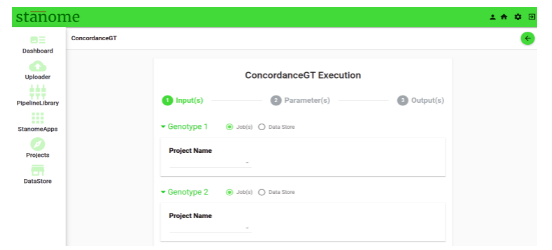
Click [](https://docs.stanome.com/uploads/images/gallery/2022-01/image-1642994426282.png)(Fig. 2) from any App to open the execution dialog box. Execution requirements vary for each App but generally, three objects are expected - inputs, parameters, and outputs. Select the right objects from the drop-downs and click the Submit button.
[](https://docs.stanome.com/uploads/images/gallery/2022-01/image-1642994451556.png)
Fig: Execution page of ConcordanceGT app.
# Jobs in Stanome Apps
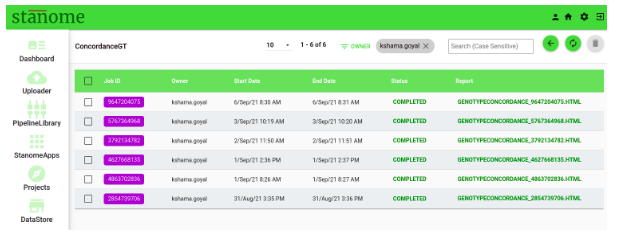
App execution results are displayed similar to the jobs list window in a project and can be accessed by clicking the [ ](https://docs.stanome.com/uploads/images/gallery/2022-01/image-1642998708617.png)icon (Fig 3).
[](https://docs.stanome.com/uploads/images/gallery/2022-01/image-1642998762379.png)
Fig: App jobs list view.